Report Browser (desktop)
Optional BLXBench Report Browser — browse local benchmark HTML reports, leaderboard aggregates, and run detail in a desktop window.
The BLXBench Report Browser is an optional desktop app (@bitslix/blxbench-report-browser) that reads benchmarks saved under ~/.blxbench/reports (same layout the CLI uses). It complements the website leaderboard: you get Leaderboard, Runs, per-run Overview / Tests / Raw JSON, search and filters, and quick access to render artifacts (e.g. coding UI HTML).
It is not installed with the main CLI by default. You need Node.js and npm on PATH for the guided install from the TUI.
Who can use (pass / role)
The Report Browser is not a fully offline-only viewer. On launch it checks your BLXBench account via GET /api/cli/me (using the same API key as the CLI). The UI unlocks only when your role is Bencher or higher (Bencher, Founder, or Admin).
- Runner and Scout accounts are blocked — you’ll see an in-app message that the Report Browser is only available from Bencher upward (matching the product tiers on /pass).
- Bencher is the minimum subscription tier that unlocks this app; higher tiers keep access.
If your role is insufficient but valid otherwise, upgrade your plan or sign in with an eligible account.
BLXBench session (required)
You must have a stored CLI session so the app can call the API:
~/.blxbench/credentials.json— typically created by/auth loginin blxbench (containsapiKeyand optionalwebOrigin), orBLXBENCH_API_KEYunderenvin~/.blxbench/config.json(see Configuration — App config file).
Without a key, the viewer stays locked with a prompt to log in via /auth login or set BLXBENCH_API_KEY.
You also need network reachability to your BLXBench web origin (production or the URL in credentials) so /api/cli/me can run — only after that check does the app read local reports from disk.
Install & launch
From the blxbench CLI (recommended)
- In the TUI, run
/report browser install— uses npm to install@bitslix/blxbench-report-browserunder~/.blxbench/lib/report-browser/. - Then
/report browser opento start the app.
This is the path that matches a normal blxbench setup: install the browser once, then open it whenever you need the desktop UI.
Other install / run options
- Global npm:
npm i -g @bitslix/blxbench-report-browser, thenblxbench-report-browser. - Custom launcher: set
BLXBENCH_REPORT_BROWSER_BINARYto ablxbench-report-browserscript or a Tauri binary you built locally. - Headless / no auto-open:
blxbench-report-browser --no-open— use the printed 127.0.0.1 URL (or open it on another machine). Optional:--port.
See also Installation and the package on npm.
Data & refresh
- Reports are loaded from your local report directory (typically
~/.blxbench/reports). The Leaderboard view aggregatesoverall_ranking.jsonwhen present; Runs lists availablereport.jsonfiles. - Use Refresh when you’ve finished a new benchmark and want the UI to pick up new files.
Deep links
When your OS registers the custom URL scheme, you can open a specific report file directly:
blxbench-report://run?path=<absolute-or-encoded-path-to-report.json>The app uses a single-instance flow: an existing window can receive the link via the Tauri deep-link plugin.
UI tour
Overall model leaderboard
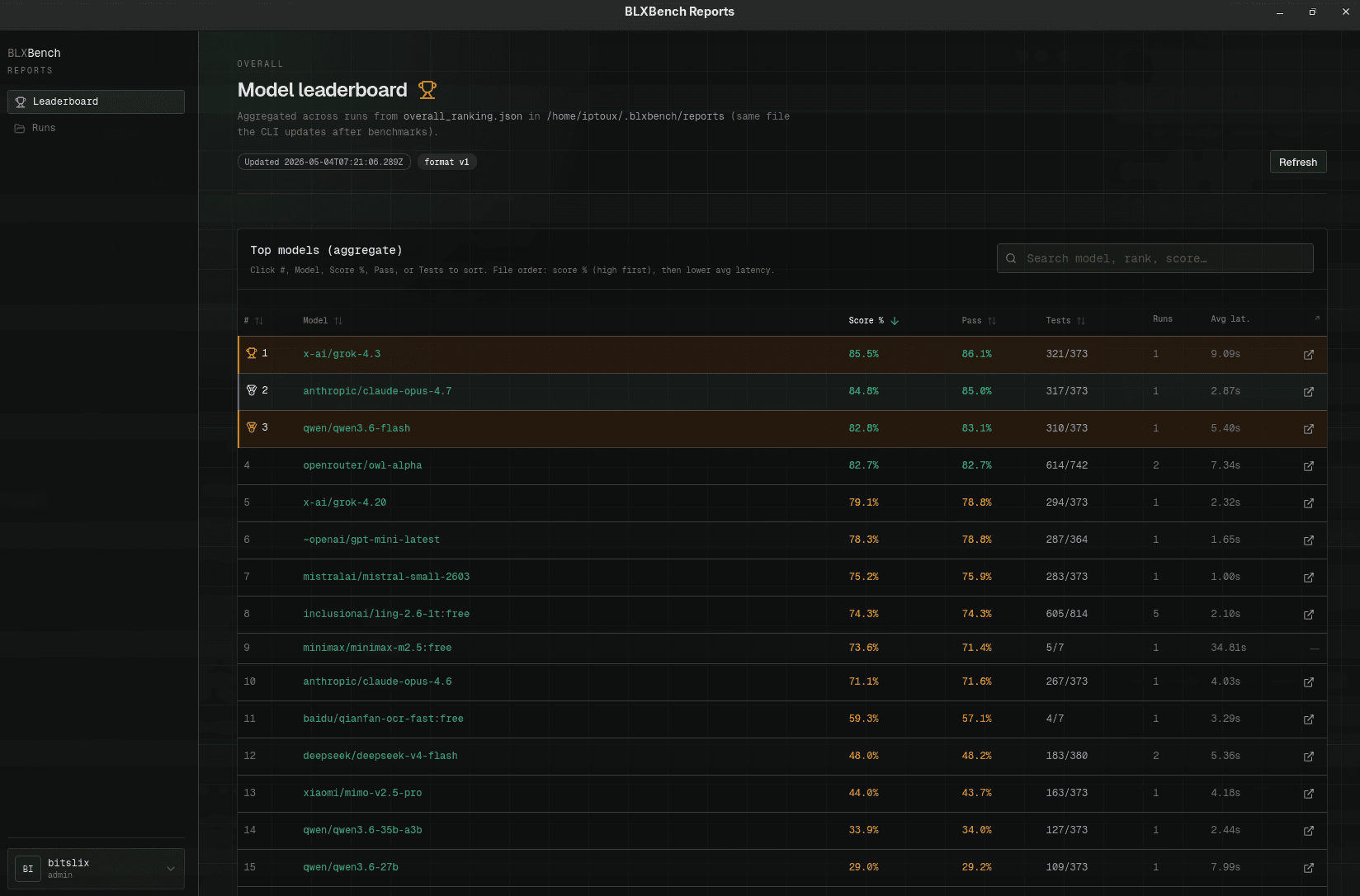
Open Leaderboard in the sidebar to see the aggregate model table (search, sort, rank). Data comes from your local overall_ranking.json when available.
Model detail
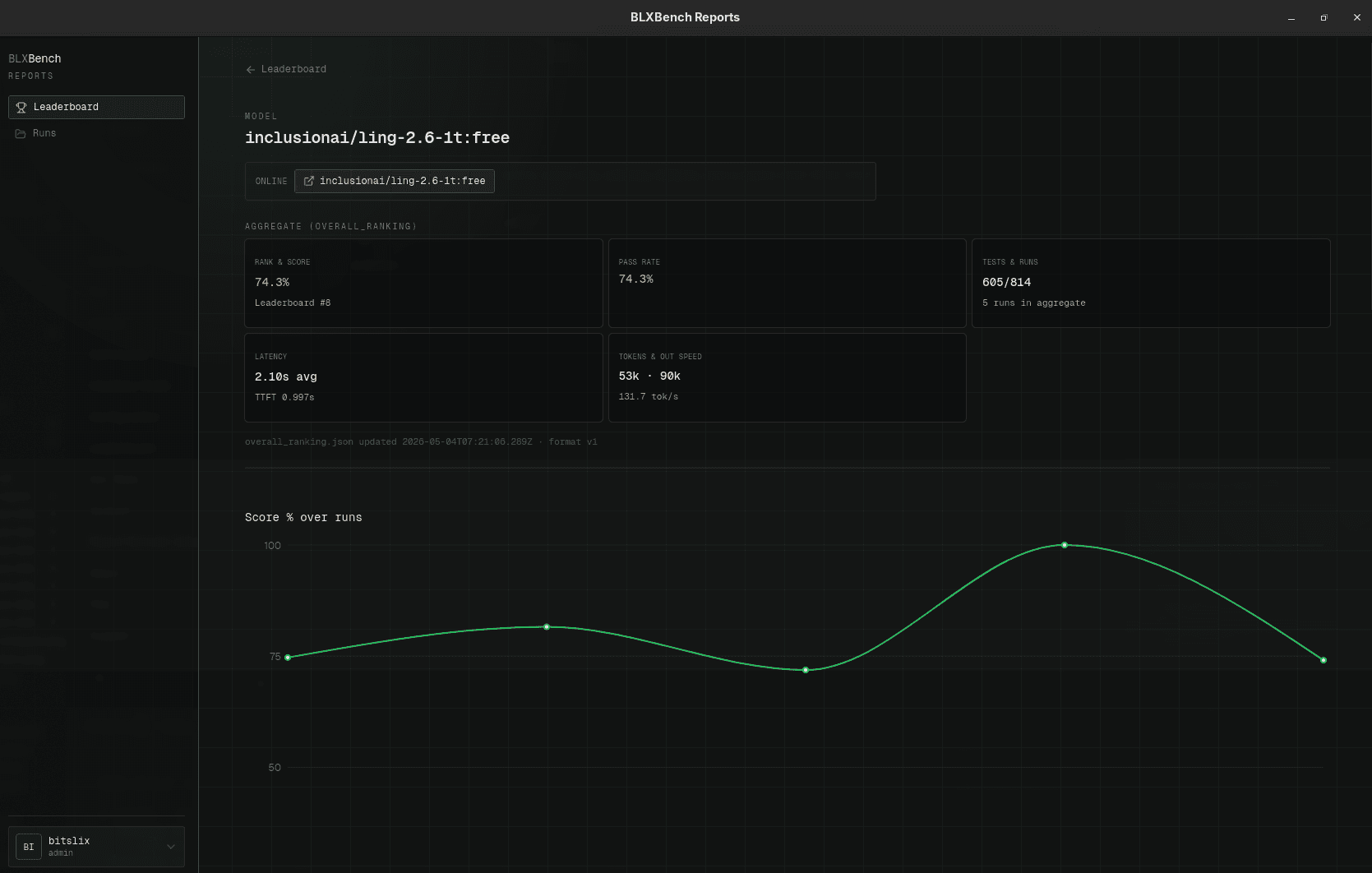
Drill into a model for rank, score, pass rate, latency, tokens, and a score-over-time chart when multiple runs exist.
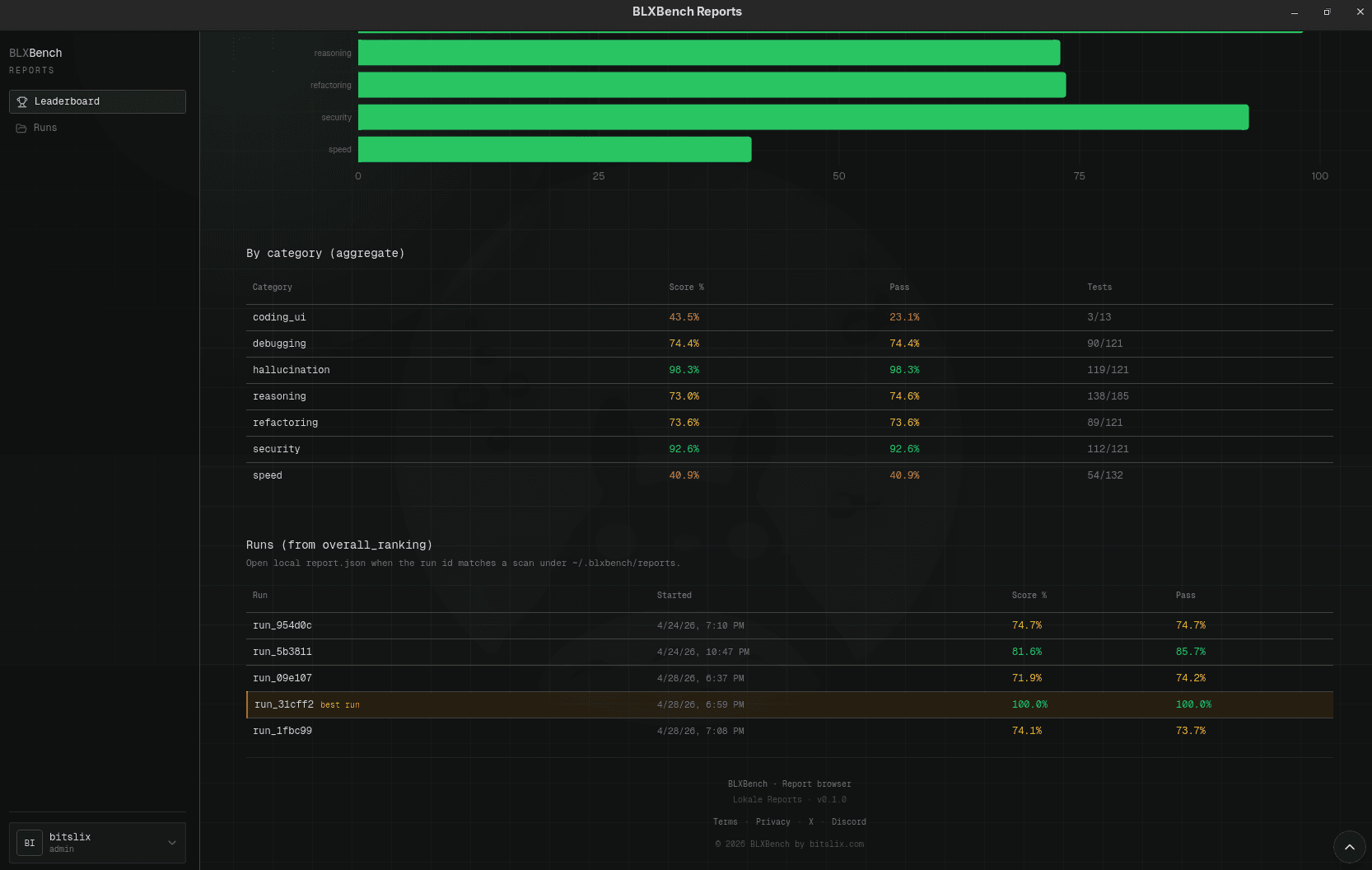
The same model page can show per-category scores and a Runs table linking back to individual report.json files (best run highlighted when applicable).
Run report — Overview
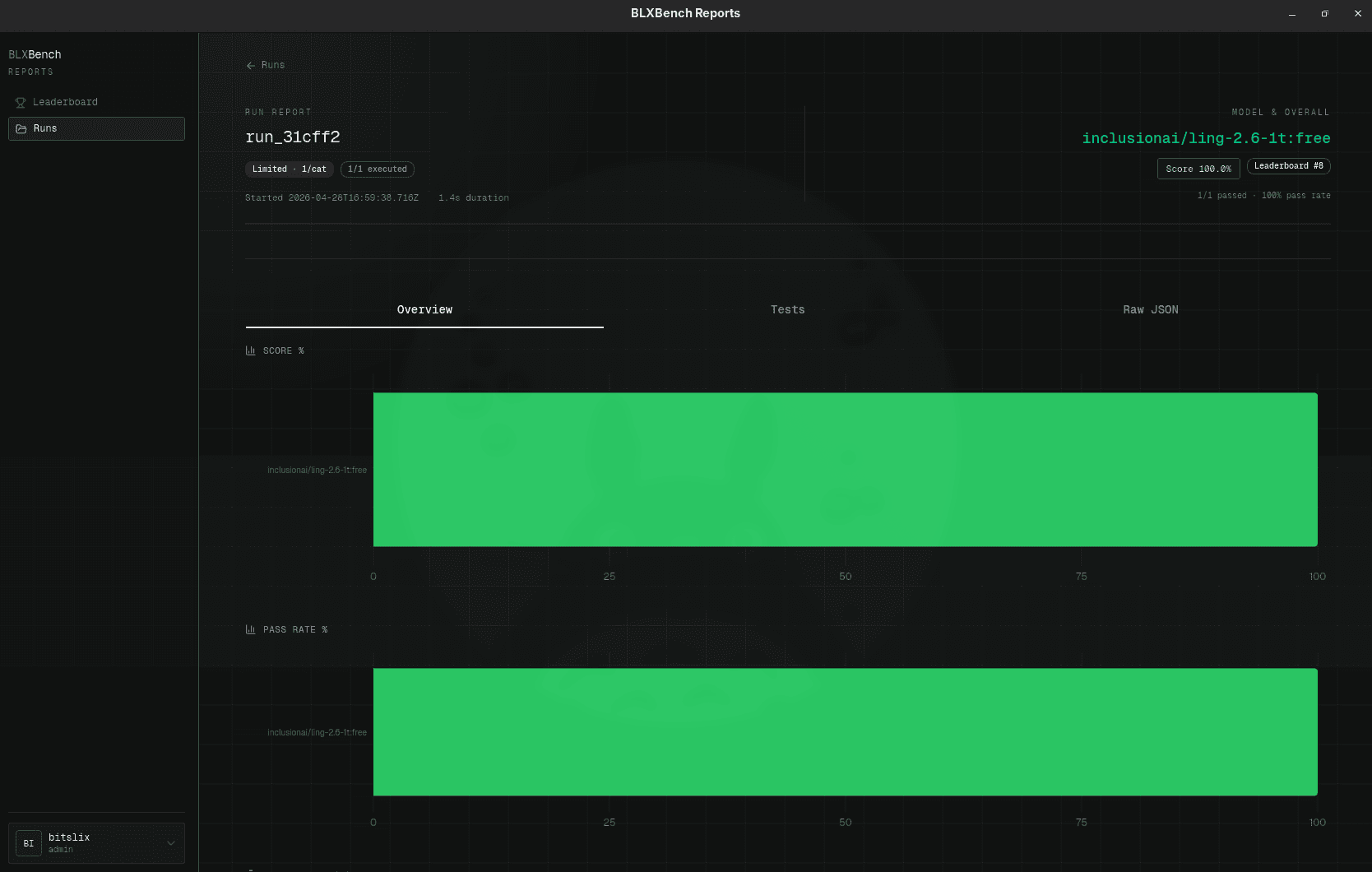
Under Runs, pick a run to see provider, execution counts, duration, model line, and summary badges. The header can also show limited or filtered suite context (e.g. per-category caps). The Overview tab charts high-level score and pass rate.
Run report — Tests
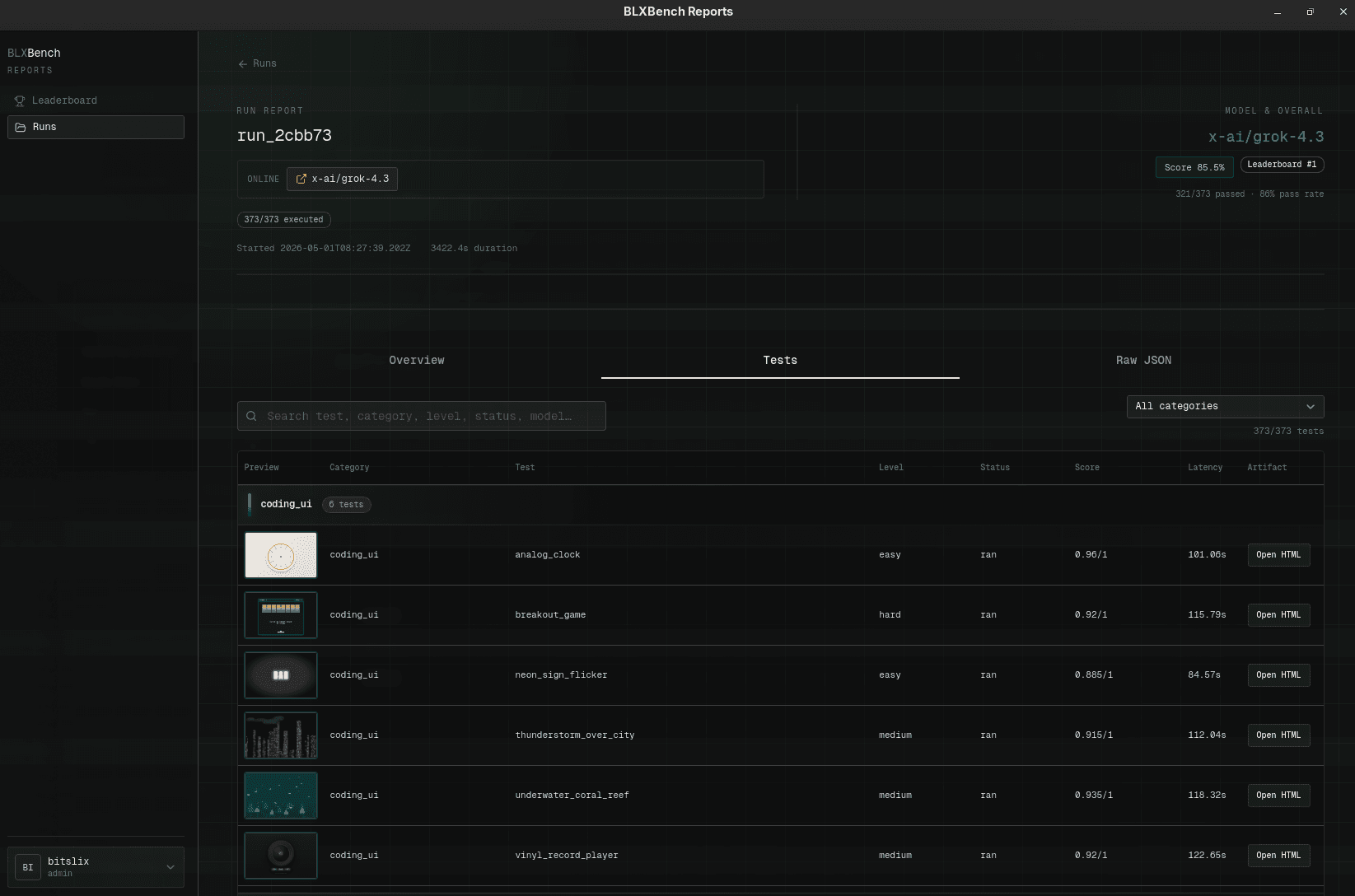
Switch to Tests for a searchable, filterable table: category, level, status, score, latency, and Open HTML for UI fixtures. Thumbnails give a quick preview of coding-ui outputs.
Artifacts (HTML)
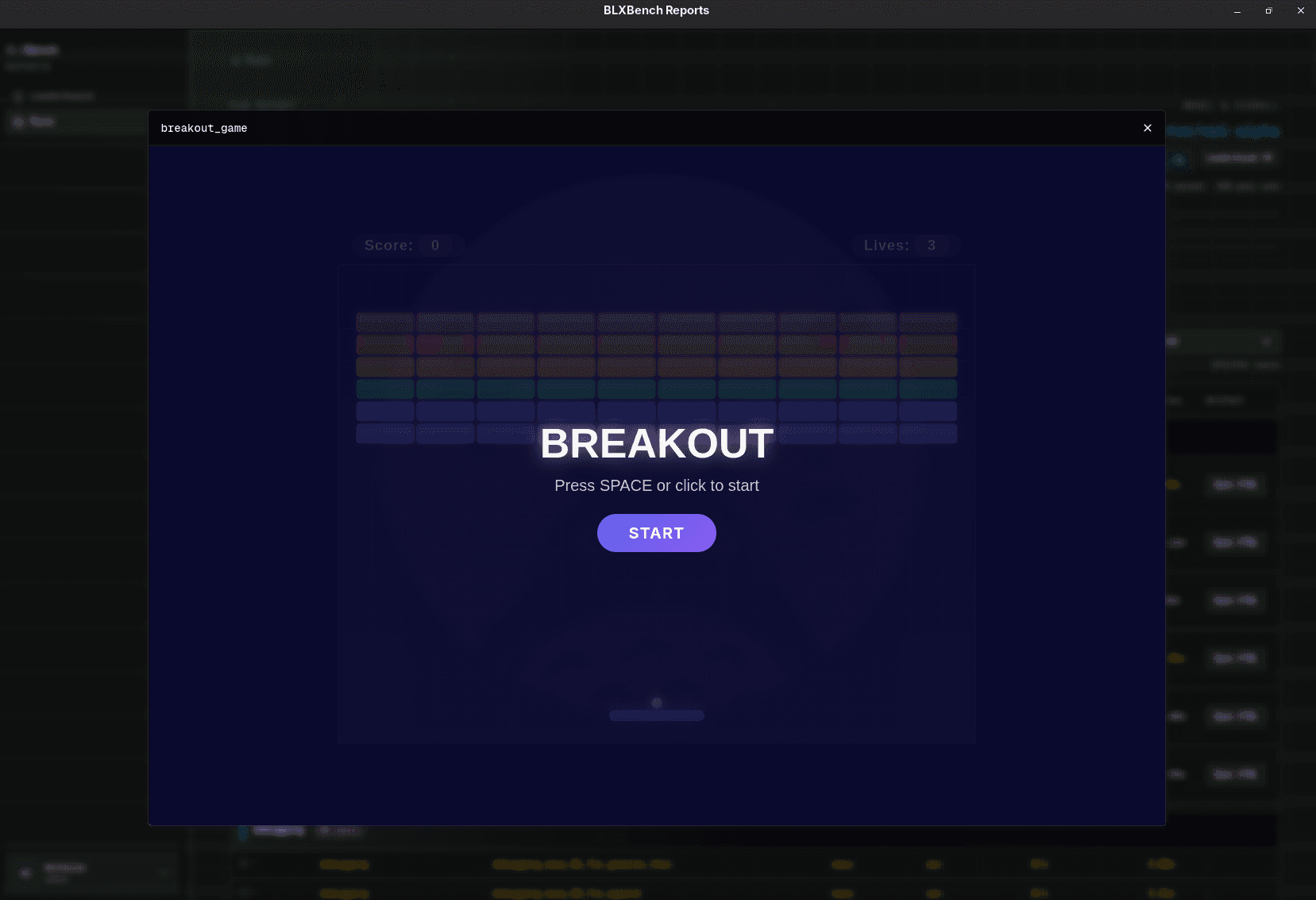
For tests that produce a browser artifact, Open HTML opens the saved render (for example a simple game or UI demo) inside the app.
Raw JSON
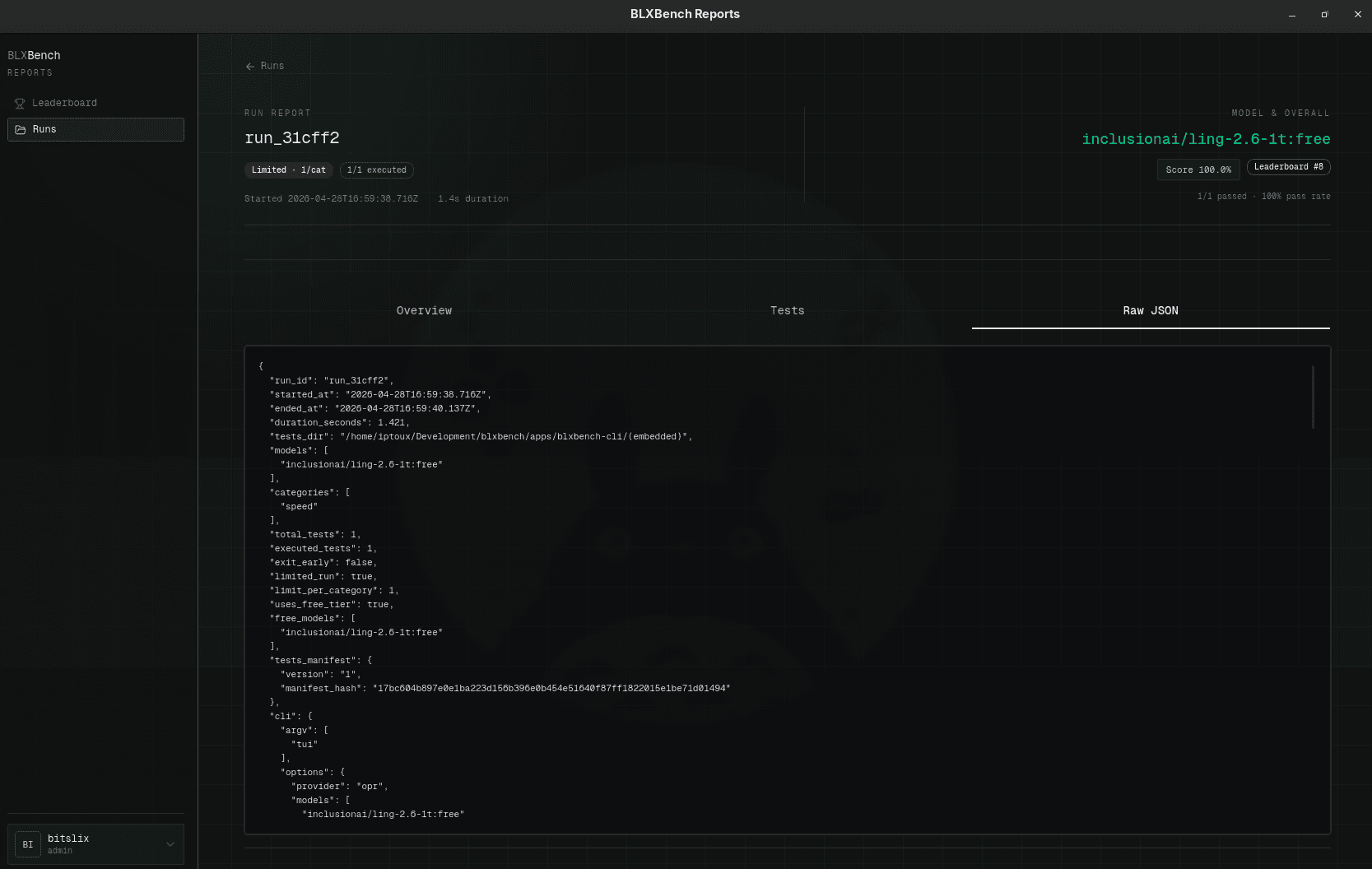
Use the Raw JSON tab when you need the unprocessed report.json payload (debugging or copy/paste). The viewer shows the full object in a scrollable code block with the same run metadata and CLI options embedded in the file.
Account sidebar
When the session check succeeds, the footer shows your name and role (the same account the CLI uses). The menu reflects your permissions; the main content is only available after the Bencher+ role gate above.
See also
- Leaderboard (website) — how public rankings work on blxbench.com.
- Account — passes and API keys for submissions.
- Quick start — running benchmarks and producing reports.
Screenshots are stored under
/images/blxbench-report-browser/in the site’s public assets.